> ## Documentation Index
> Fetch the complete documentation index at: https://docs.webapp.io/llms.txt
> Use this file to discover all available pages before exploring further.
# SECRET ENV
`SECRET ENV [secret name...]`
The `SECRET ENV` instruction adds values from secrets to the runner's
environment.
Secrets are useful for storing sensitive information. They can hold passwords,
API keys, or other private credentials. For security reasons, it is good
practice to not keep this information within source code. Managing private data
using secrets allows easy authentication with other services on your behalf.
Webapp.io has a secrets manager built into the platform. This makes entering and
editing secrets as simple as 1, 2, 3:
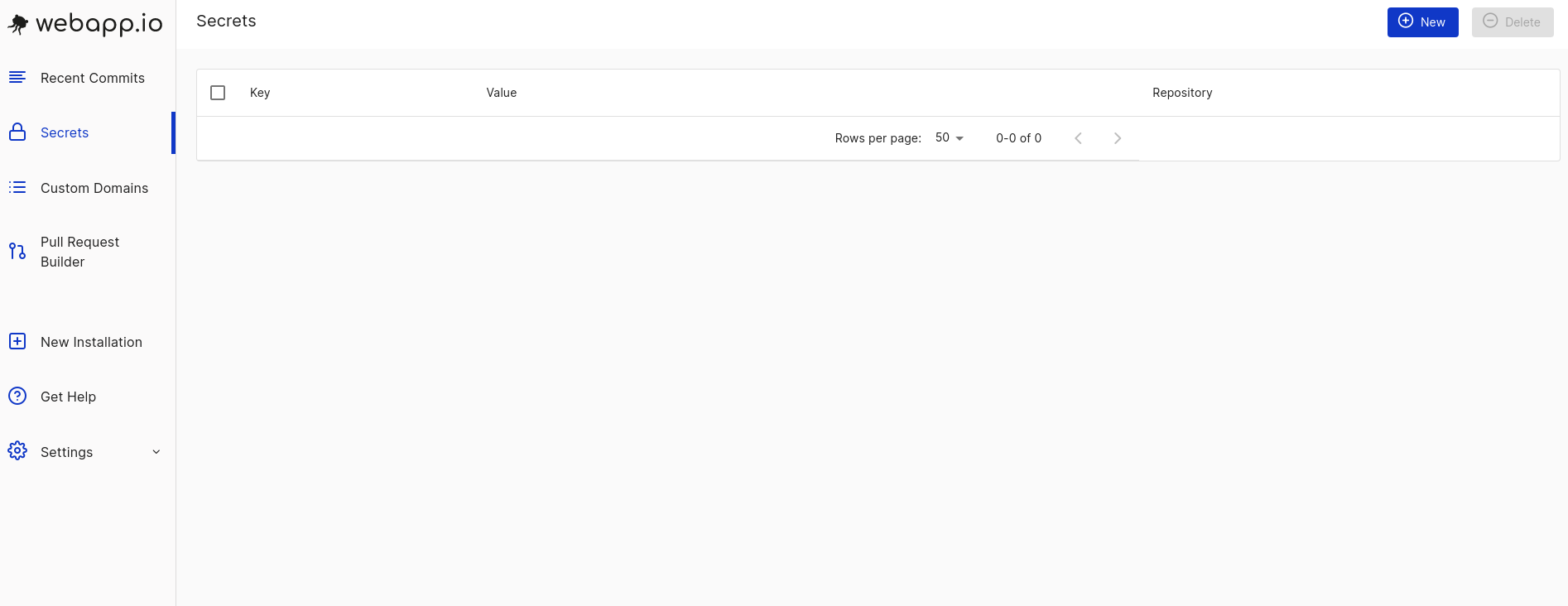
**Step 1:** Navigate to the secrets tab in your webapp.io account.
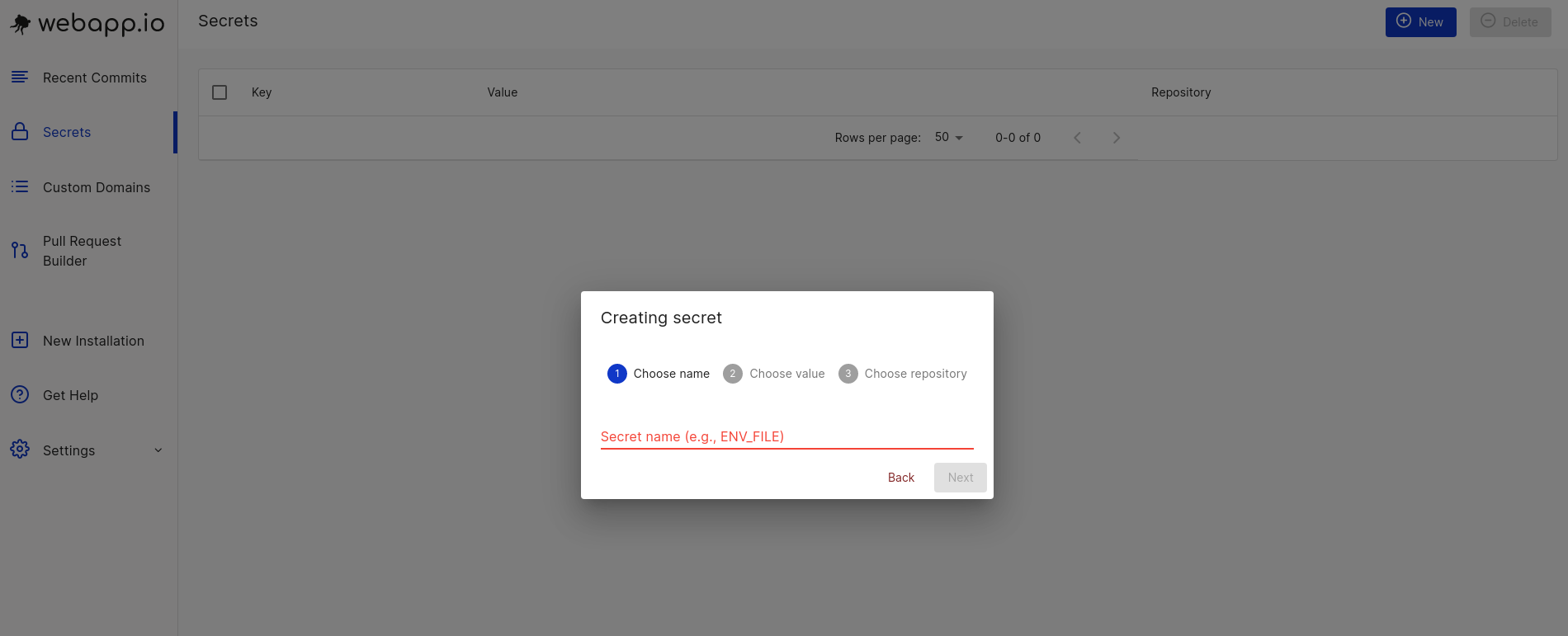
 **Step 2:** Click ‘NEW’ in the top right corner. Follow the prompts to choose a
secret name, value, and destination repository.
**Step 2:** Click ‘NEW’ in the top right corner. Follow the prompts to choose a
secret name, value, and destination repository.
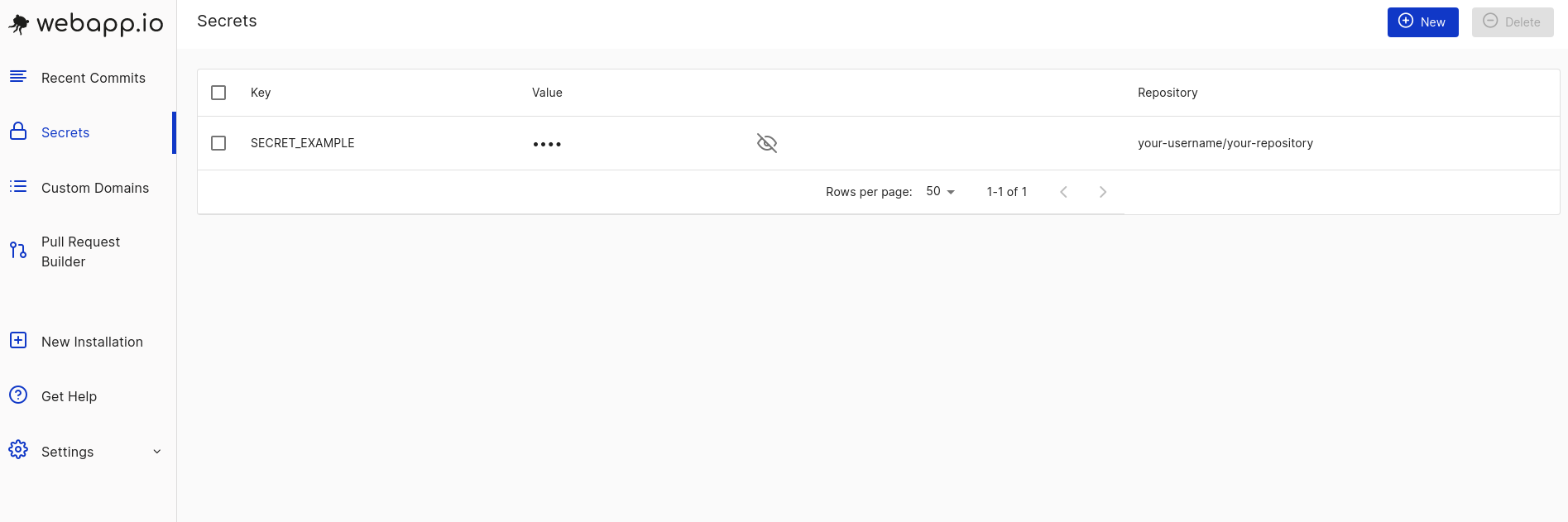
 **Step 3:** All done!
 ### Examples
* Use `SECRET ENV ENV_FILE` to expose your dotfile env `.env` and then use
`RUN echo "$ENV_FILE" | base64 -d > ~/.env` to decode the uploaded env file to
the specific location.
### Who can create secrets?
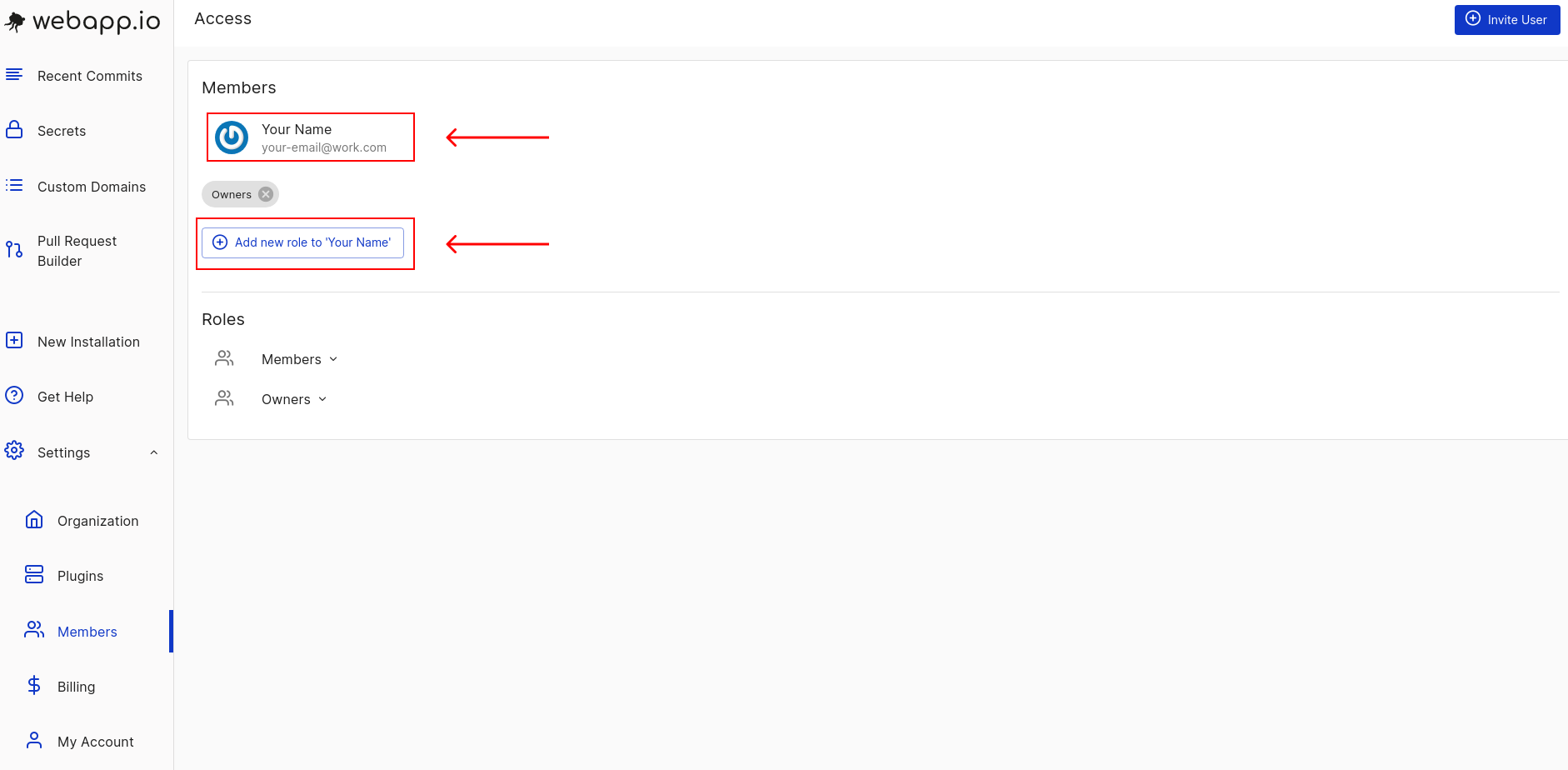
Only owners of an organization's webapp.io account can create and edit secrets.
Permissions can be edited in the members tab, which can be found in the settings
dropdown menu. The members tab displays all users in an organization.
### Examples
* Use `SECRET ENV ENV_FILE` to expose your dotfile env `.env` and then use
`RUN echo "$ENV_FILE" | base64 -d > ~/.env` to decode the uploaded env file to
the specific location.
### Who can create secrets?
Only owners of an organization's webapp.io account can create and edit secrets.
Permissions can be edited in the members tab, which can be found in the settings
dropdown menu. The members tab displays all users in an organization.
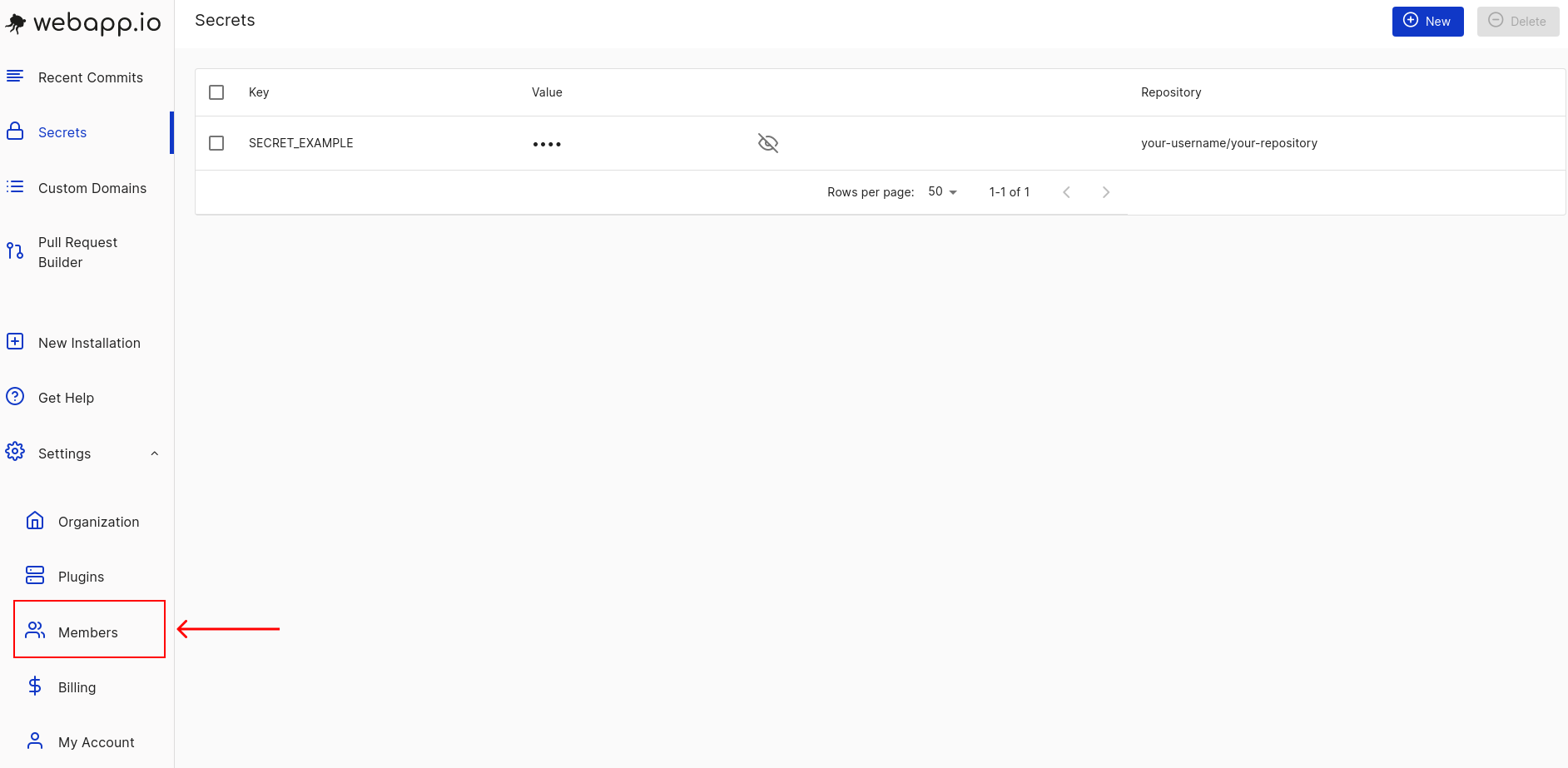 Click on the name of a user to display their permissions. Only users with
owner-level access can create secrets. An organization’s owner(s) can edit
permissions for other users.
Click on the name of a user to display their permissions. Only users with
owner-level access can create secrets. An organization’s owner(s) can edit
permissions for other users.